

Overview
This guide explains how to start and join your virtual instructor-led training session.
Important: PSHSA does not send Zoom links by email. To join your virtual instructor-led training session, you must log in to the PSHSA Portal and select Access Session.
Before You Begin
- You must have a PSHSA Portal account.
- You must be registered for a course or assigned a course by your employer.
- Use a laptop or desktop with a camera (phones and tablets are not recommended).
- Ensure Zoom is installed on your device.
Video Walkthrough
Watch this short video for a quick walkthrough of the steps.
Steps
- Go to pshsa.ca/portal.
-
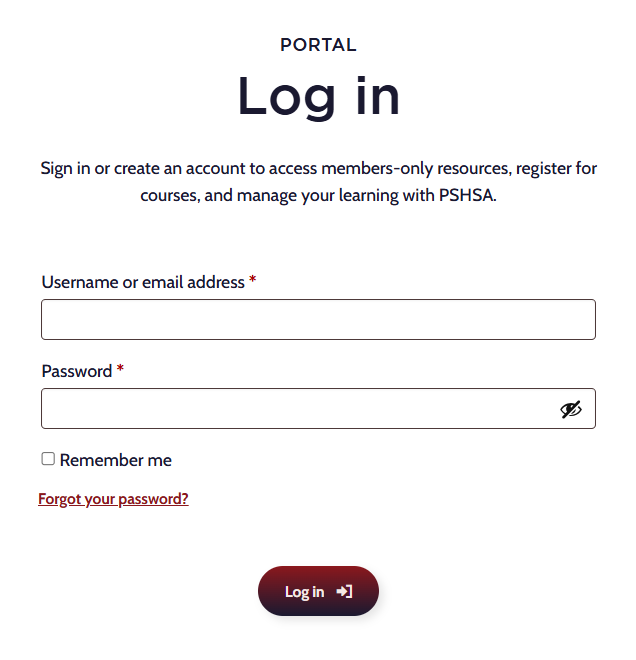
Log in using your email address (username) and password.
-
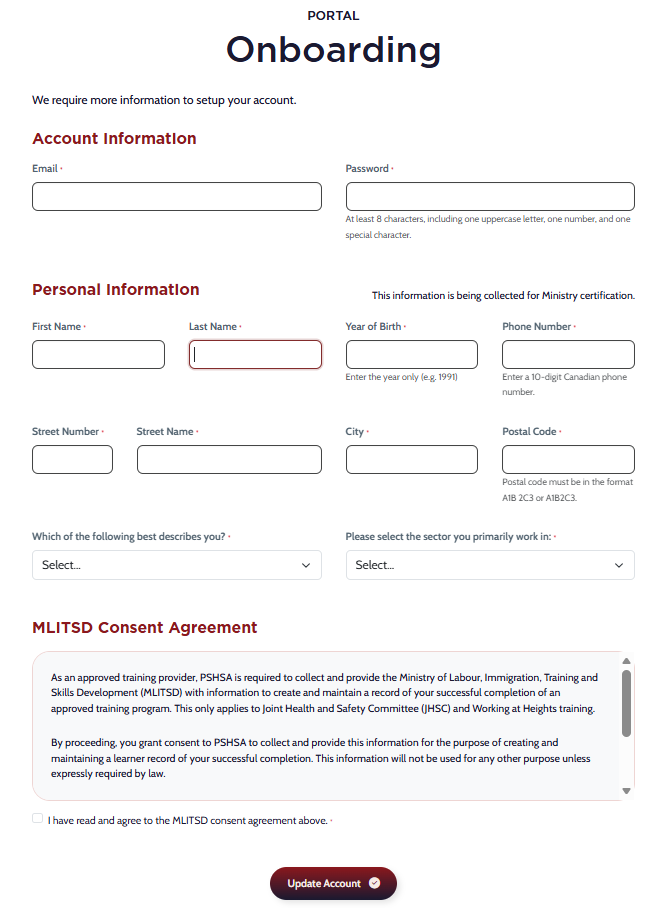
If this is your first time logging in, complete your profile and onboarding details when prompted.
-
- My Sessions if you are accessing training assigned to you.
- Managed Sessions if you booked the training or are managing the session for others.
Select the correct tab:
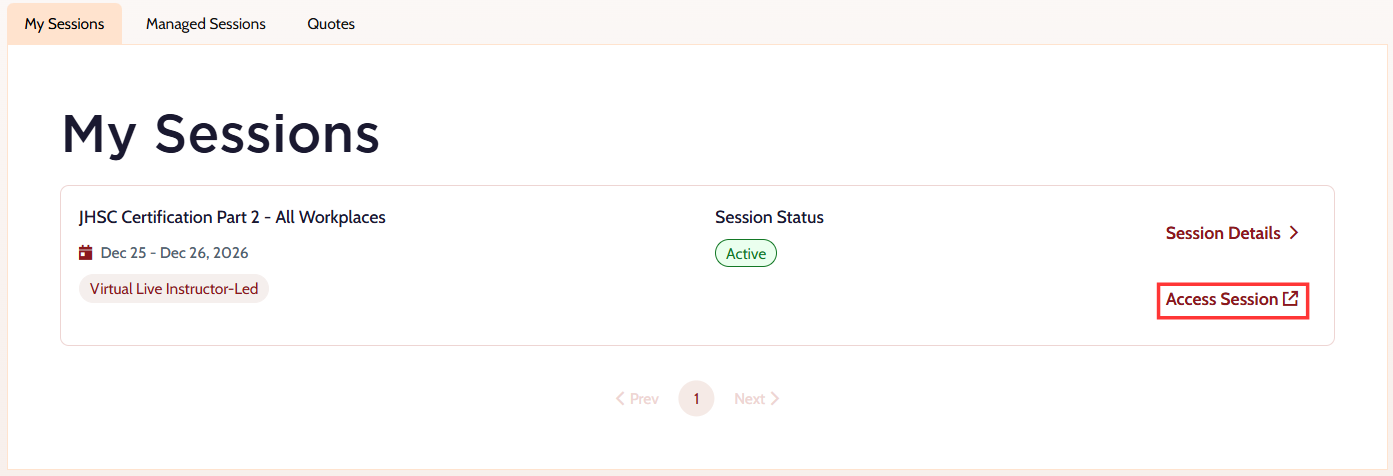
- Verify the session start time and select Access Session.
-
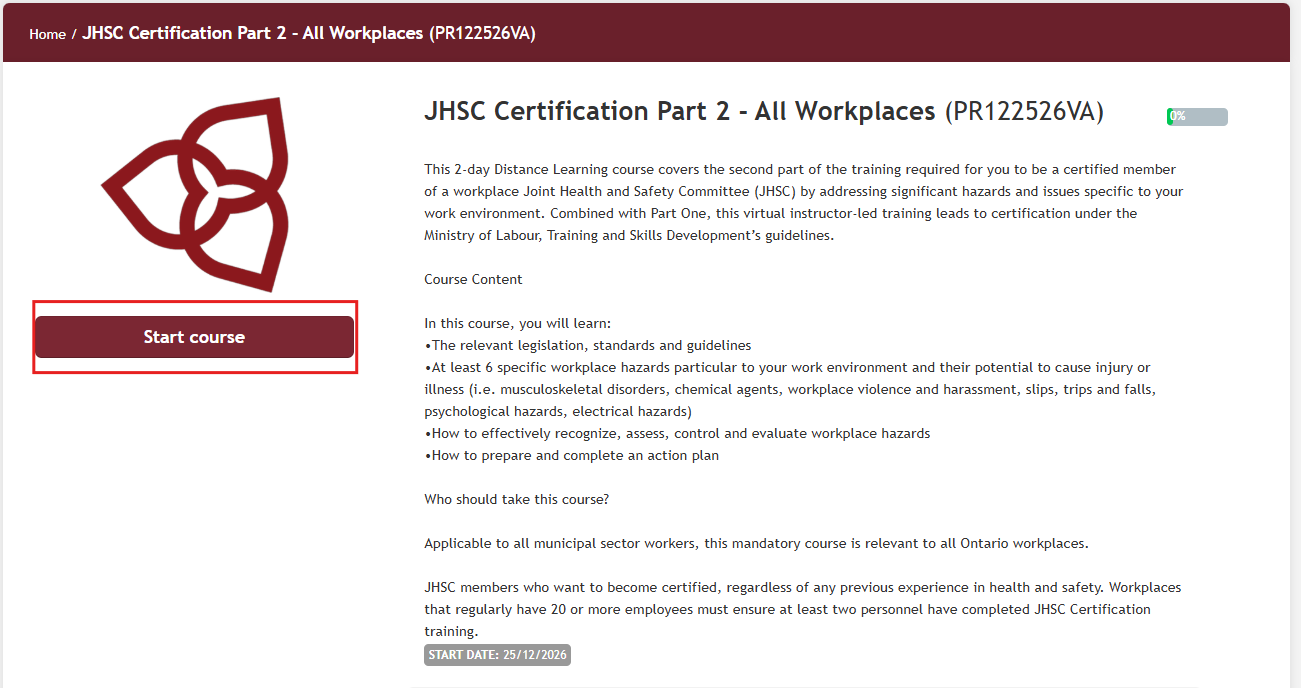
Select Start Course when the new tab opens.
-
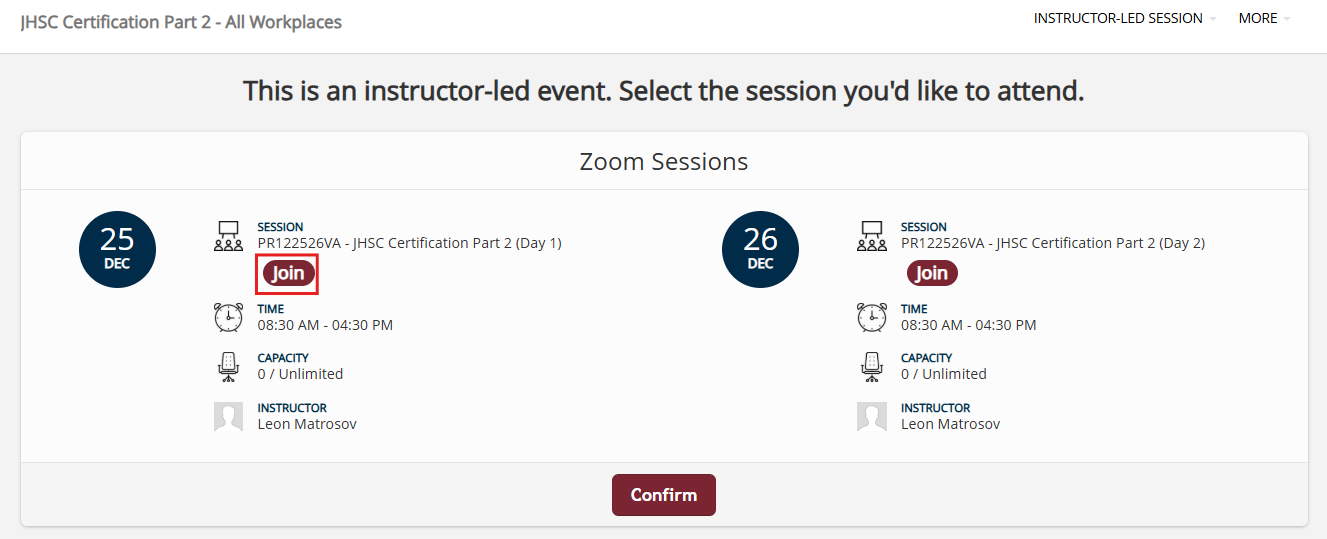
Select Join to launch and enter the Zoom session. The Join button becomes available 15 minutes before the session start time.
Troubleshooting
-
I did not receive a Zoom link
PSHSA does not send Zoom links by email. To join your session, log in to the PSHSA Portal and select Access Session. -
I do not see the Join button
The Join button becomes available 15 minutes before the session start time. Refresh your browser page and verify you are viewing the correct session. -
The Zoom session is not opening
Ensure Zoom is installed on your device. You may also need to allow pop-ups in your browser or select “Open Zoom Meetings” when prompted. -
I cannot access my course or session
Confirm you are logged in using the same email address used for course registration or assignment. Check your email for a message with the subject line “You Have Been Registered” to verify the email address associated with your registration. -
I forgot my password
Use the “Forgot Password” option on the PSHSA Portal login page to reset your password. -
I am using a phone or tablet
For the best experience, use a laptop or desktop computer with a camera and microphone.
Need Help?
If you have trouble accessing the portal or joining your session, contact the Client Experience Team:
- Email: clientexperience@pshsa.ca
- Click the Live Chat button at the bottom right corner of the page.