

Overview
This guide explains how to view and download your digital certificate of completion using the PSHSA Portal.
Before You Begin
- Ensure your facilitator has marked you as passed.
- If applicable, ensure you have completed and passed the final test for your course.
Video Walkthrough
Prefer a visual walkthrough? Watch the video below for a step-by-step demonstration of how to view and download your digital certificate of completion.
Steps
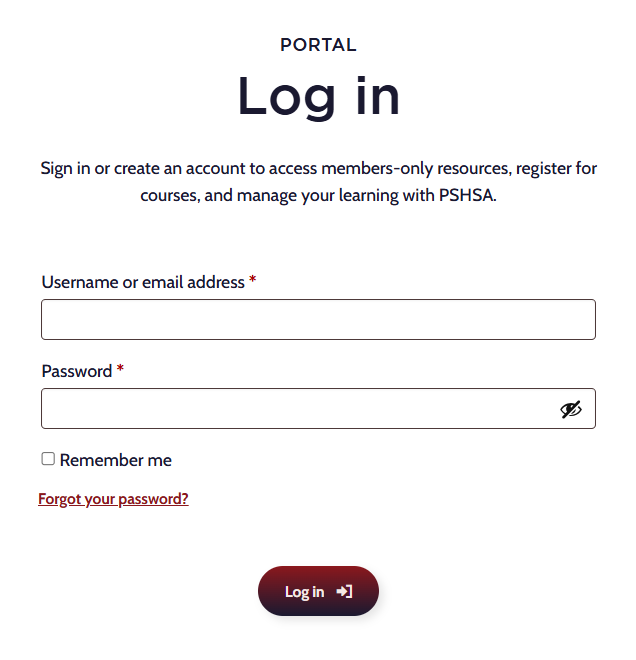
- Go to pshsa.ca/portal.
- Log in using your email address and password.
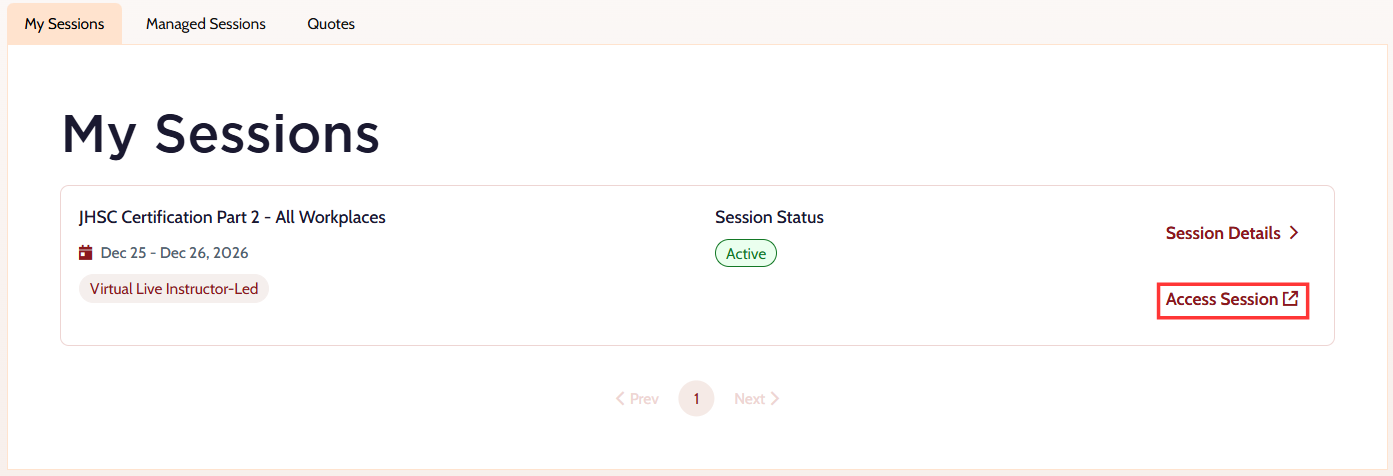
- My Sessions — if you are accessing training assigned directly to you.
- Managed Sessions — if you booked the training or are managing the session for others.
Select the appropriate tab:
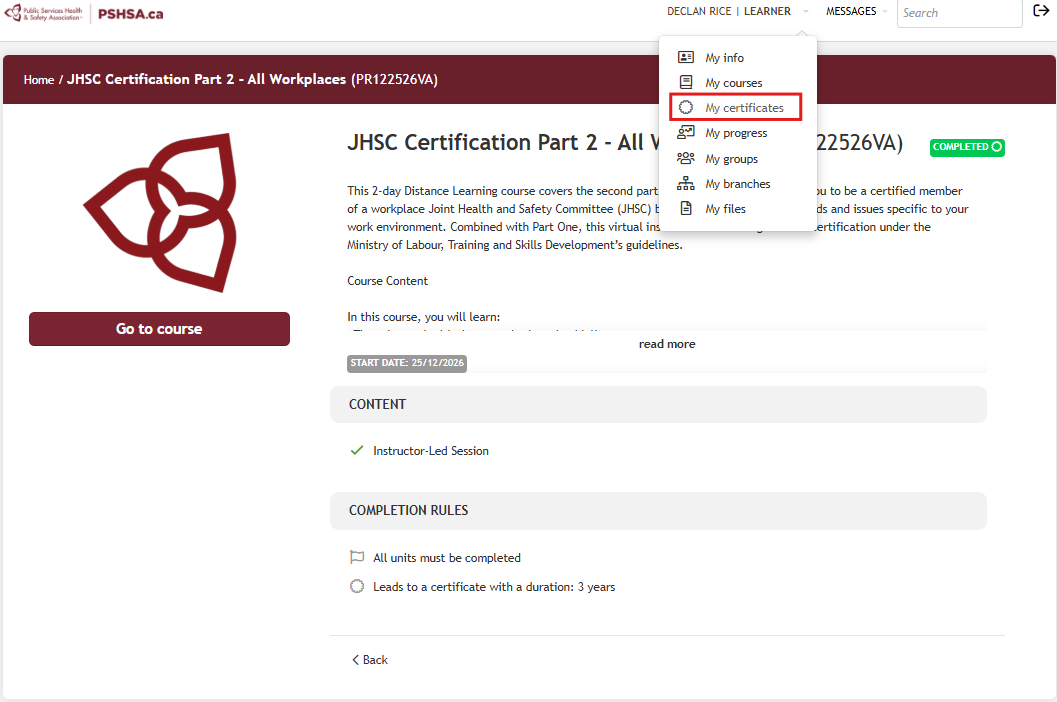
- Locate the training session and select Access Session. The training platform will open in a new tab.
- At the top of the page, hover over your name and select My Certificates.
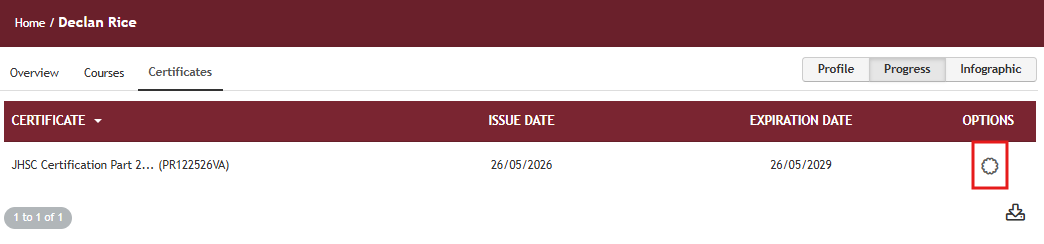
- Locate your completed course and under Options, select the certificate icon to view or download your digital certificate of completion.
Alternative Method
- From the training platform, select Go To Course.
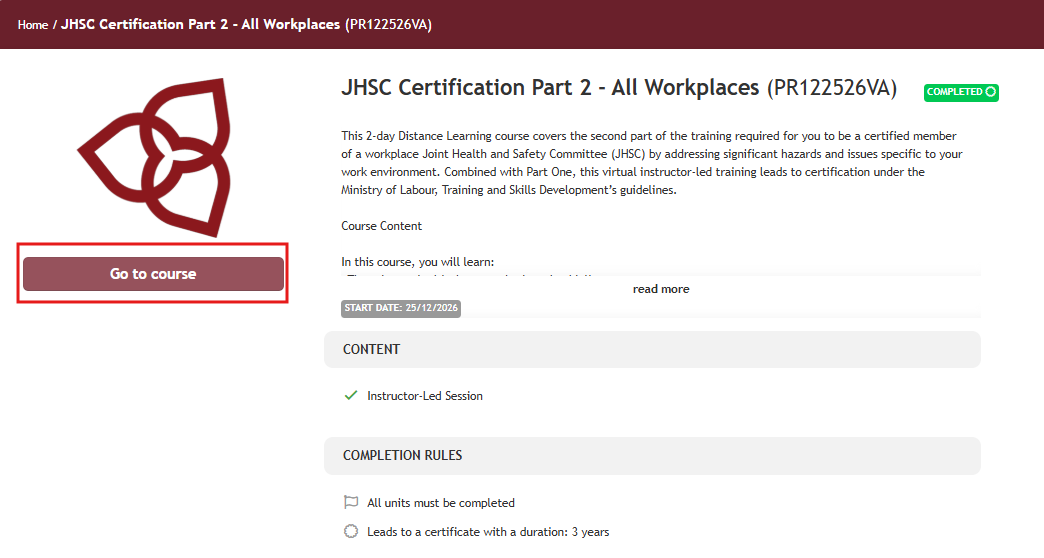
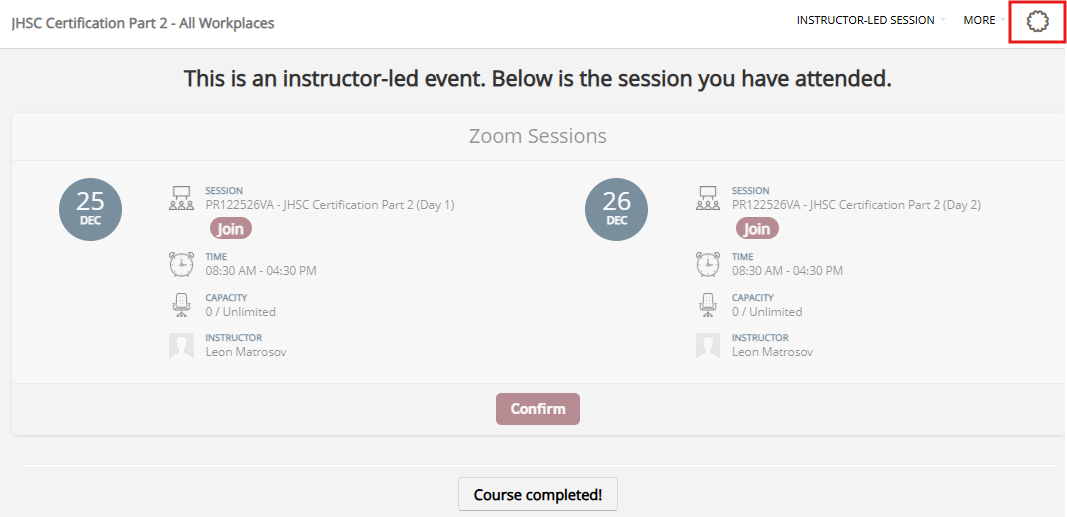
- Select the Download Certificate icon in the top right corner of the page.
Another Way to Access Your Certificate
- After completing your course, you will receive an email titled:“Your certificate for [Course Name]”
from noreply@talentlms.com.This email contains a direct download link for your digital certificate of completion.
Troubleshooting
- I cannot see my certificate
Ensure your facilitator has marked you as passed and that you have completed and passed any required final test. - I did not receive the certificate email
Check your junk or spam folder for emails from noreply@talentlms.com.
Need Help?
If you need assistance viewing or downloading your certificate, contact the Client Experience Team:
- Email: clientexperience@pshsa.ca
- Click the Live Chat button at the bottom right corner of the page.