

Overview
This guide explains how to find and download your course materials in the PSHSA Portal.
Before You Begin
- You must have a PSHSA Portal account.
- You must be registered for a course, or have a course assigned to you by your employer.
Video Walkthrough
Watch this short video for a quick walkthrough of the steps.
Steps
- Go to pshsa.ca/portal and log in using your email address and password.
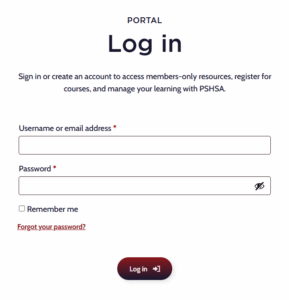
- If this is your first time logging in, complete your profile and onboarding details when prompted.
- Select the correct tab based on how you are accessing the training:
- My Sessions — if the training is assigned to you or you registered yourself.
- Managed Sessions — if you booked the training or are managing the session on behalf of others.
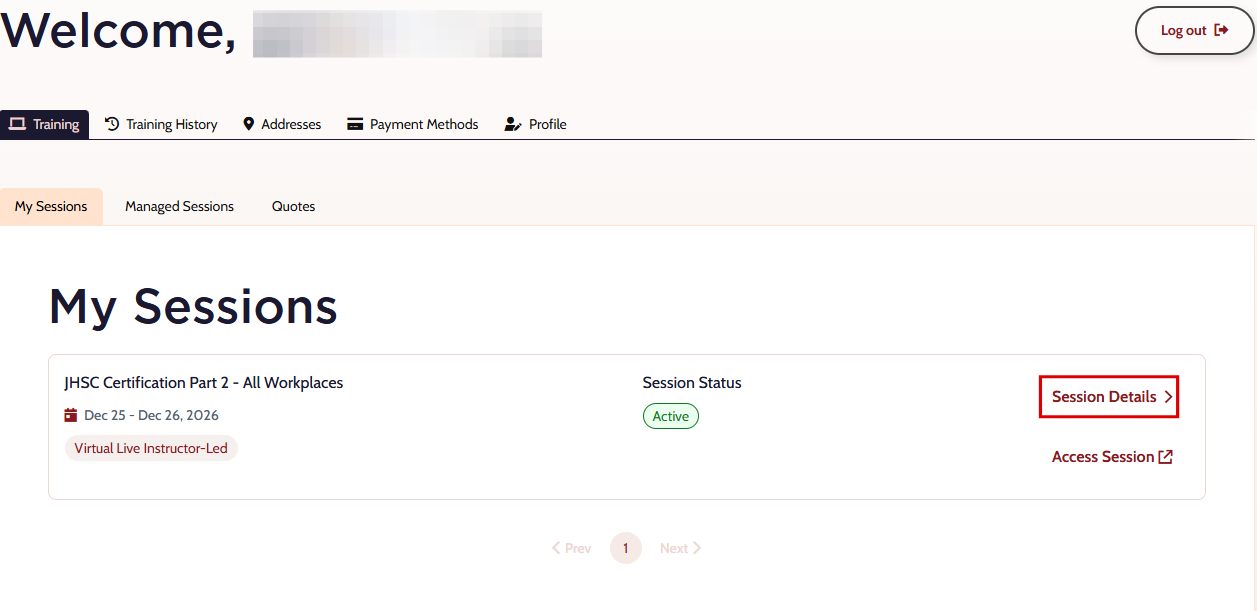
- Locate your session and select Session Details. If you booked the training or are managing it on behalf of your employees, select Manage Session instead.
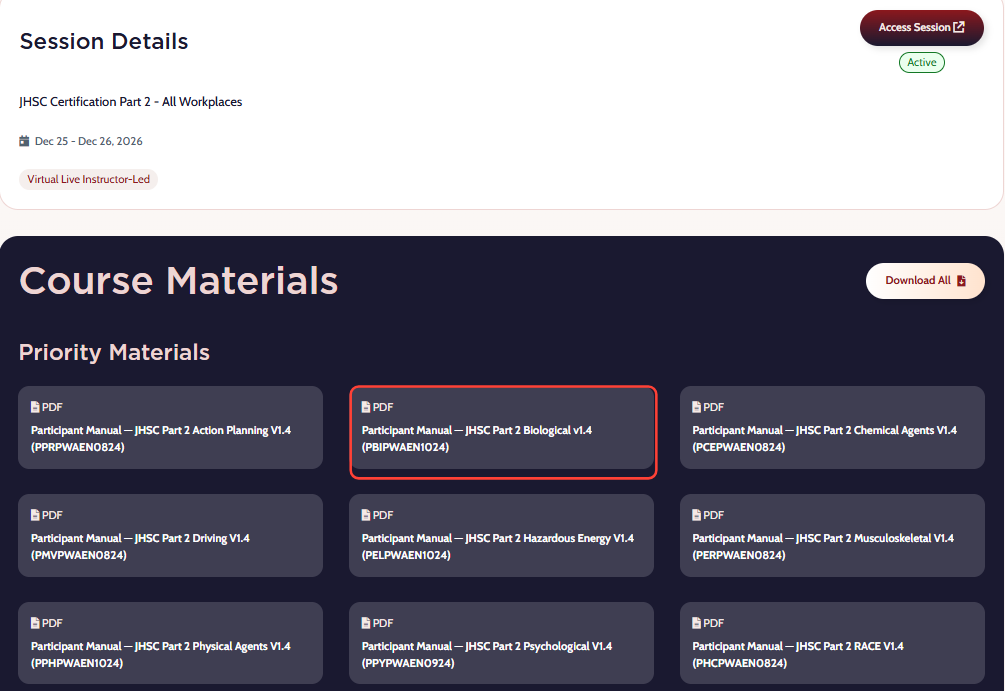
- Scroll to the Course Materials section and download your files:
- Select individual files to download only what you need.
- Select Download All to download all files at once.
Need Help?
If you have trouble accessing the portal or downloading your materials, contact the Client Experience Team:
- Email: clientexperience@pshsa.ca
- Select the Live Chat button at the bottom right of the page.