

Overview
This guide explains how to remove a learner from a training session using the PSHSA Portal.
Before You Begin
- You must have a PSHSA Portal account.
- You must be the person who registered/booked the course or be assigned to manage the training session.
Video Walkthrough
Prefer a visual walkthrough? Watch the video below for a step-by-step demonstration of how to remove a learner from a training session using the PSHSA Portal.
Steps
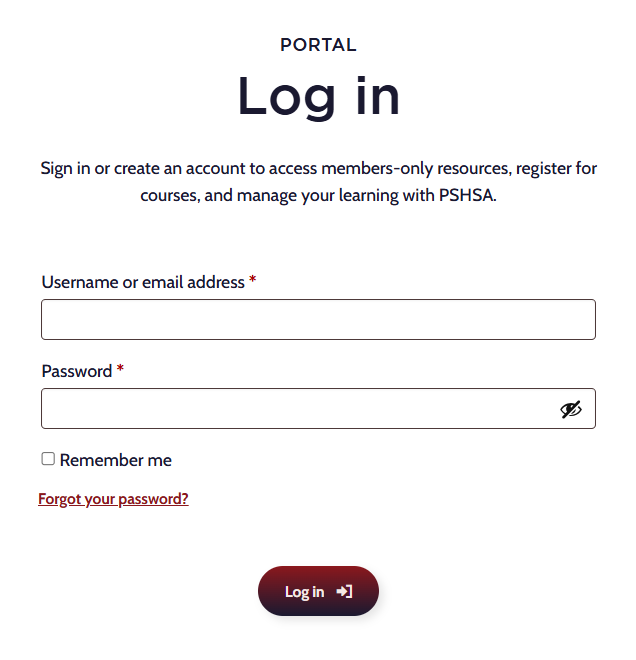
- Go to pshsa.ca/portal.
- Log in using your email address and password.
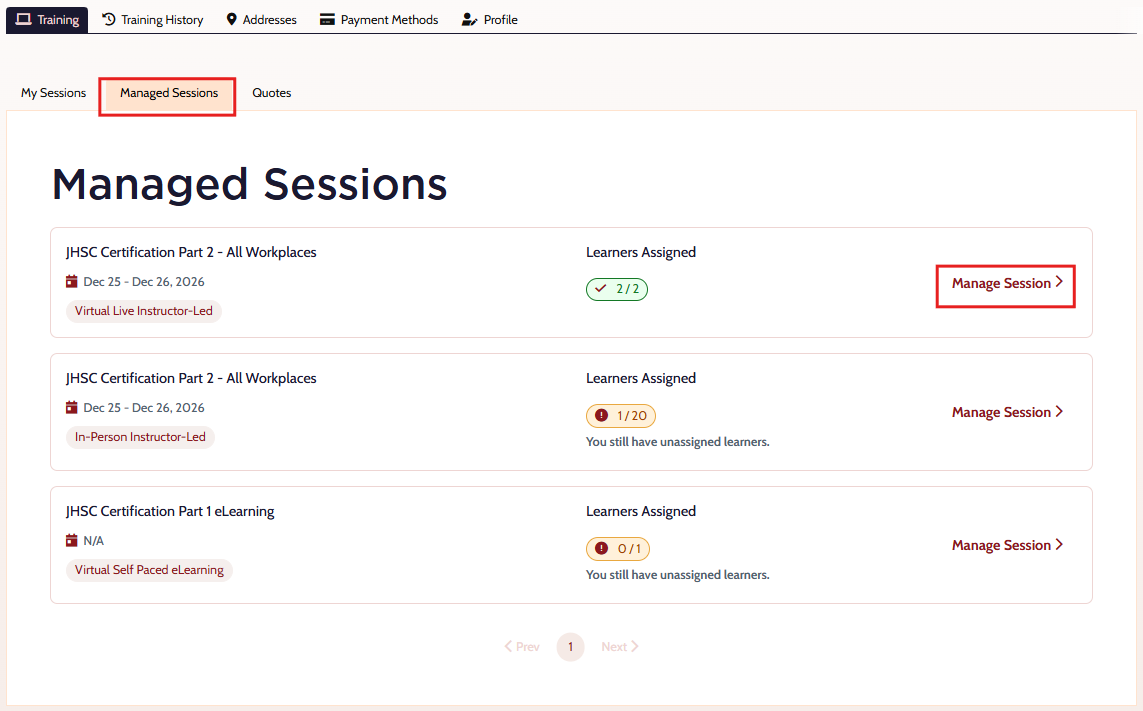
- Select the Managed Sessions tab.
- Locate the training session and select Manage Session.
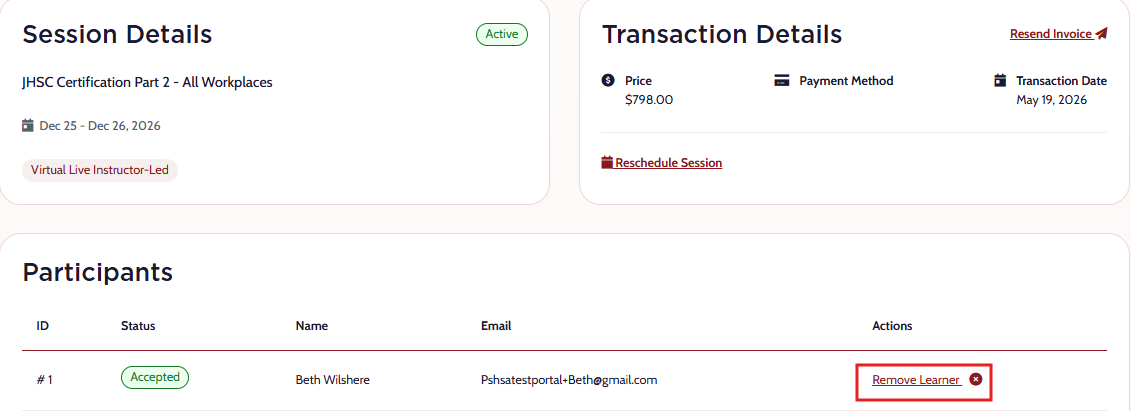
- Locate the learner you want to remove and select Remove Learner.
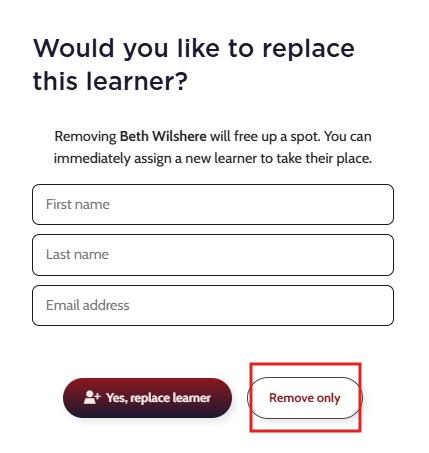
- A prompt will appear asking if you would like to replace or remove the learner. Select Remove Only.
- The learner will be removed from the course and will receive an email confirming they have been successfully removed from the course.
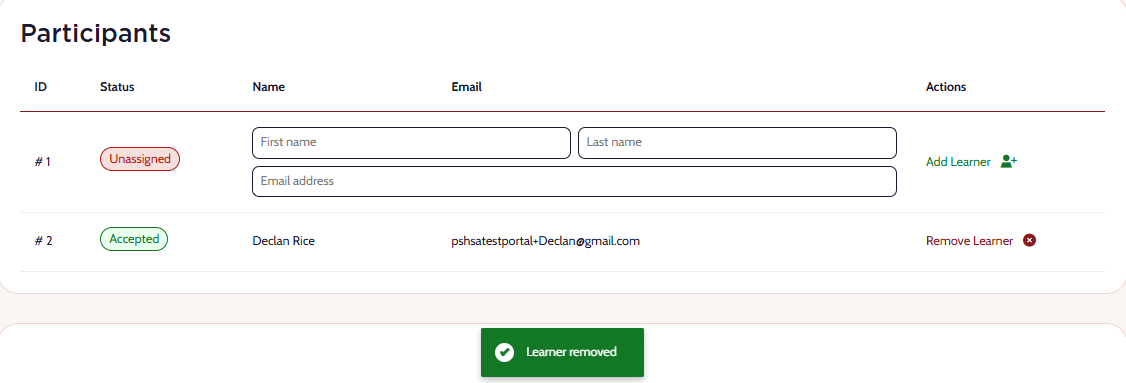
- Please ensure a replacement learner is added before the training session start date.
Need Help?
If you need assistance removing learners or accessing the portal, contact the Client Experience Team:
- Email: clientexperience@pshsa.ca
- Click the Live Chat button at the bottom right corner of the page.