

Overview
This guide explains how to replace a learner in a training session using the PSHSA Portal.
Before You Begin
- You must have a PSHSA Portal account.
- You must be the person who registered/booked the course or be assigned to manage the training session.
Video Walkthrough
Prefer a visual walkthrough? Watch the video below for a step-by-step demonstration of how to replace a learner in a training session using the PSHSA Portal.
Steps
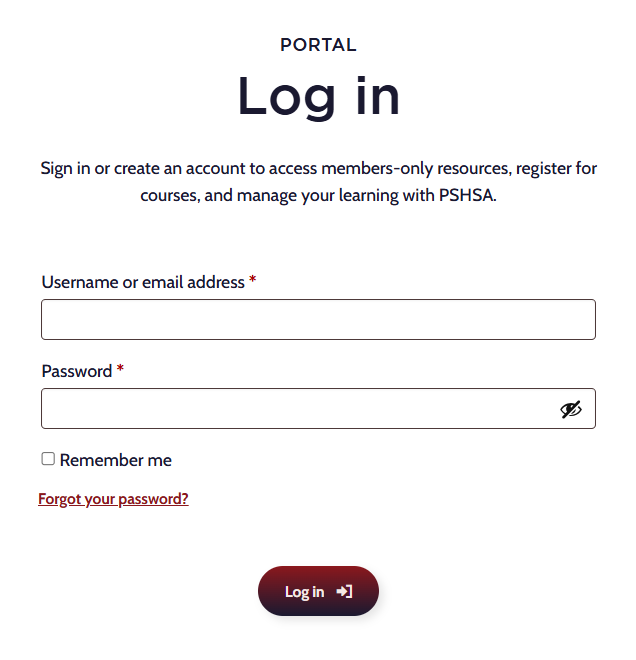
- Go to pshsa.ca/portal.
- Log in using your email address and password.
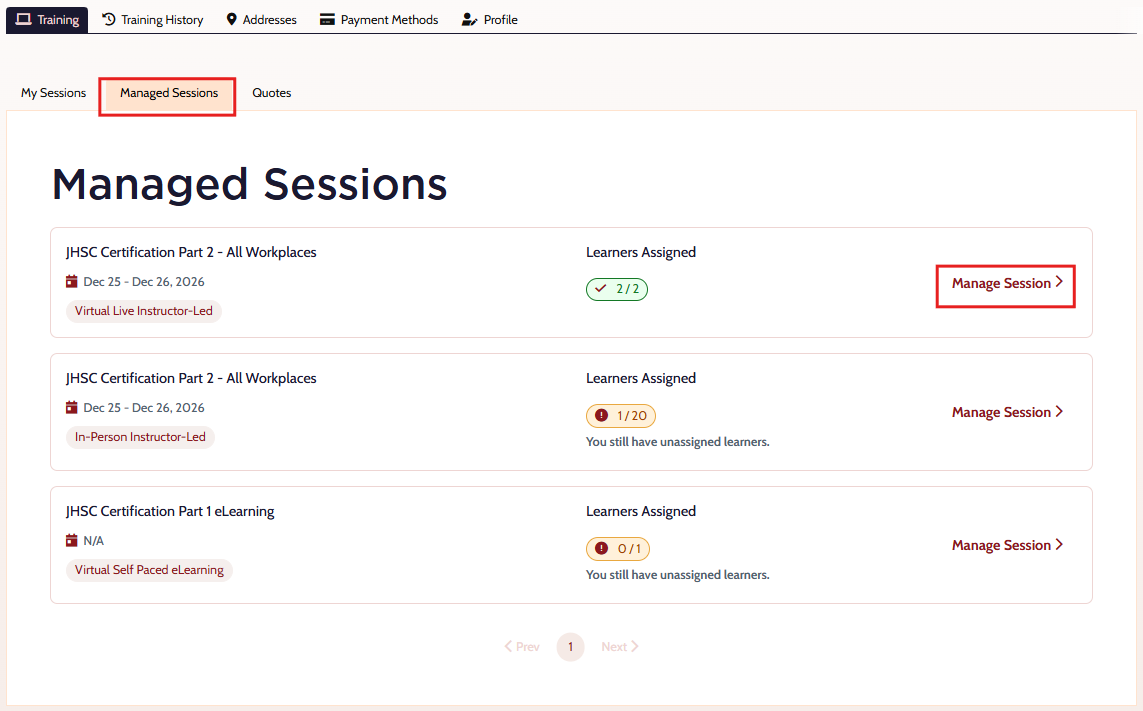
- Select the Managed Sessions tab.
- Locate the training session and select Manage Session.
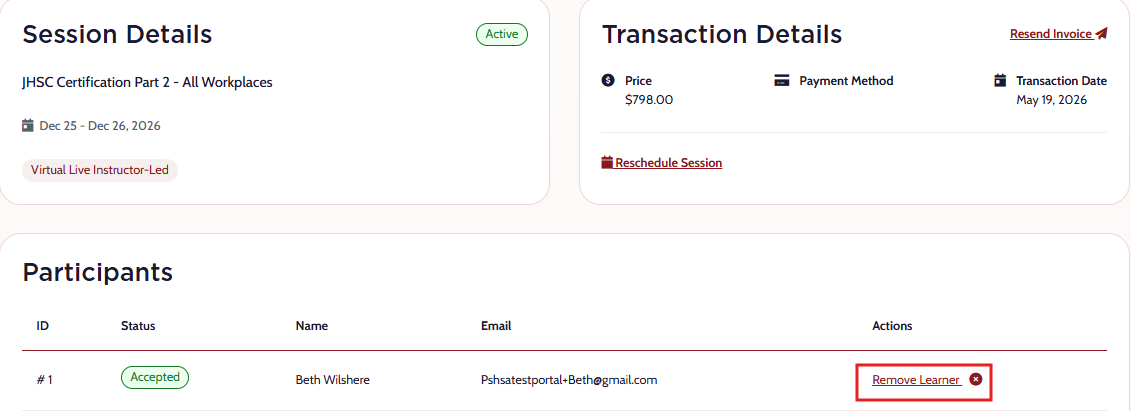
- Locate the learner you want to replace and select Remove Learner.
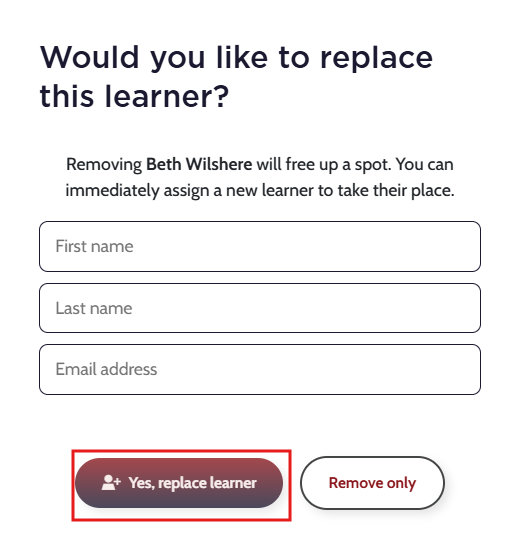
- A prompt will appear asking if you would like to replace or remove the learner.Enter the replacement learner’s first name, last name, and email address, then select Yes, Replace Learner.
- The removed learner will receive an email confirming they have been successfully removed from the course.
- The replacement learner will automatically be enrolled and will receive an email with the subject line:
“You Have Been Successfully Registered for Your Course.”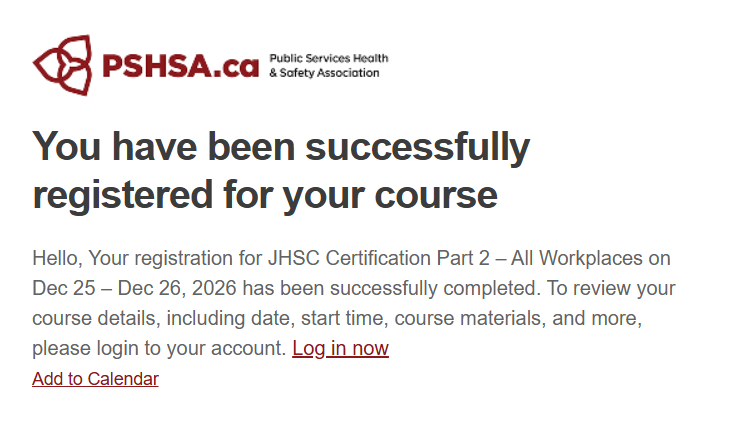
- The replacement learner must open the registration email and log in to their PSHSA Portal account before the training start date.
Need Help?
If you need assistance replacing learners or accessing the portal, contact the Client Experience Team:
- Email: clientexperience@pshsa.ca
- Click the Live Chat button at the bottom right corner of the page.